
The product
What it does
Five jobs a coach with no backroom team has to do on their own, in the order they come.
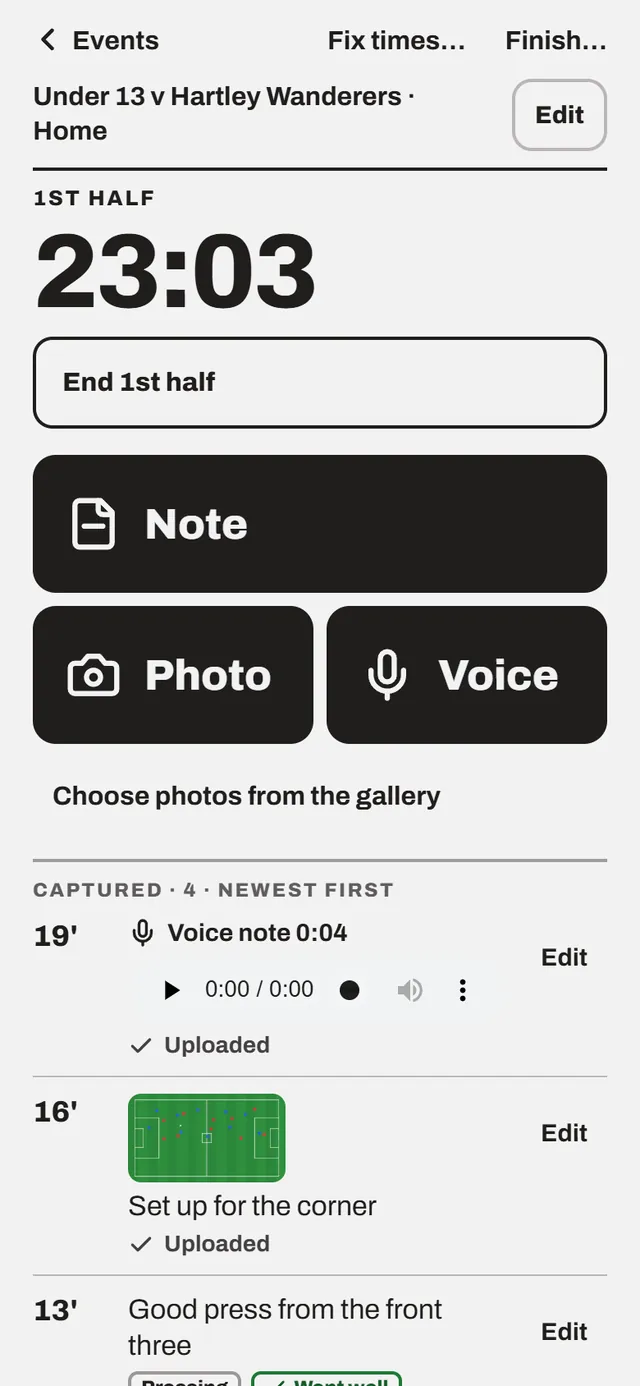
1. Capture at the pitch side
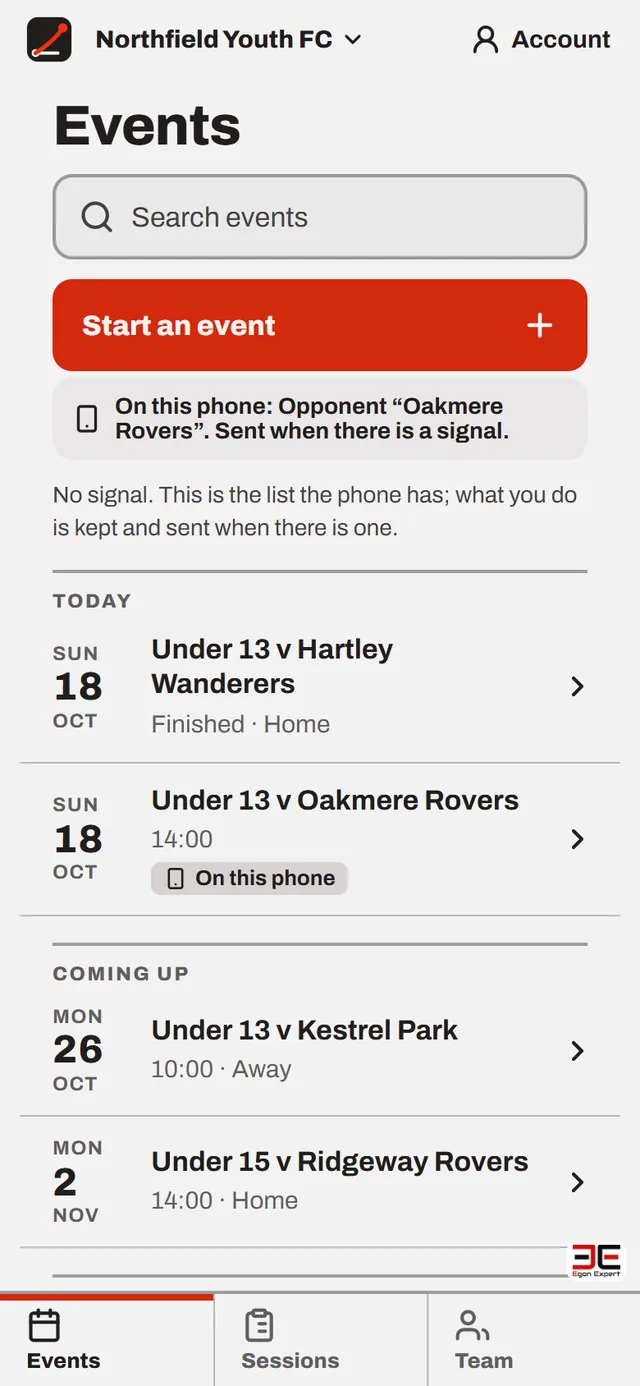
A whole screen for one hand. Three taps from the Events list to the first note: Start an event, Start capturing, Note.
- A clock for the game (kick off, half time, full time) that keeps counting when the screen locks, and an Undo for every press.
- Notes, photos and voice notes, each stamped with the minute. Voice notes can be turned into words, and notes translated, when the club’s server has them switched on.
- It works with no signal. Everything is saved on the phone first and sent when the signal comes back, however many times it has to try.
- Add the opponent, the place and the kick-off time when you start, or leave them for later.
2. Watch it back
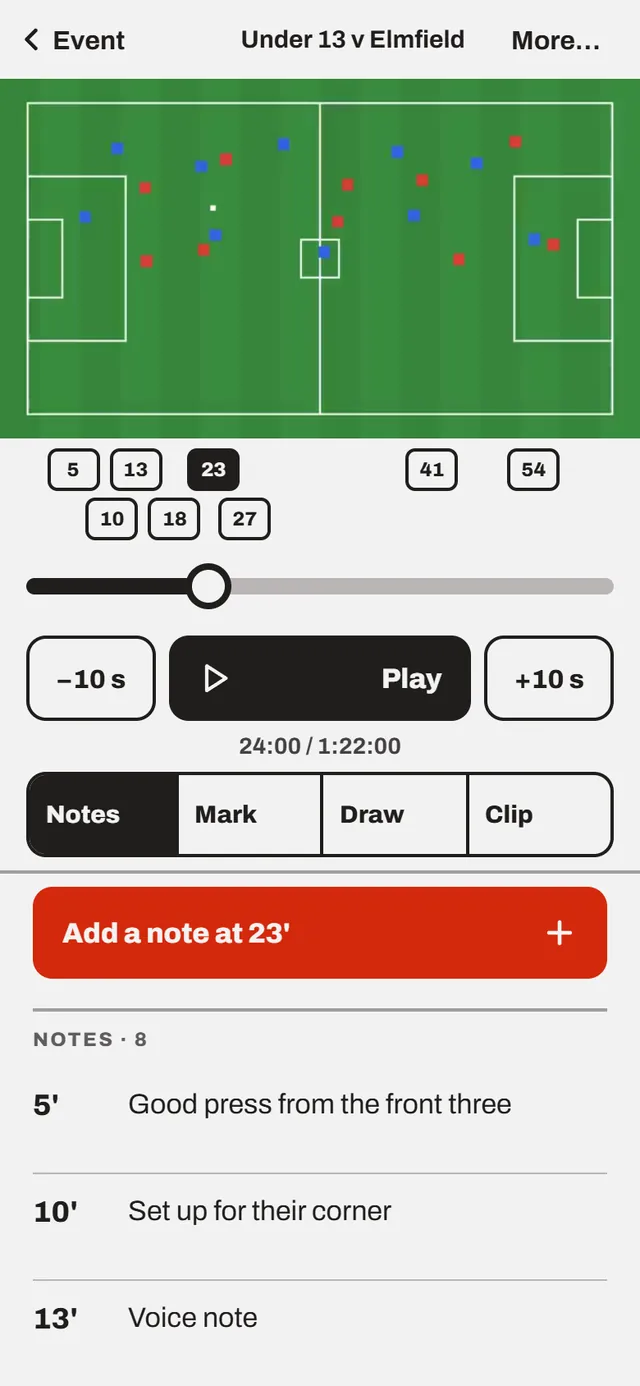
Bring the match footage from a camera such as Veo, an XbotGo through YouTube, or a phone. The notes line up with it.
- Your notes appear along the video’s scrubber, so the minute you wrote “lost him at the back post” is one tap away.
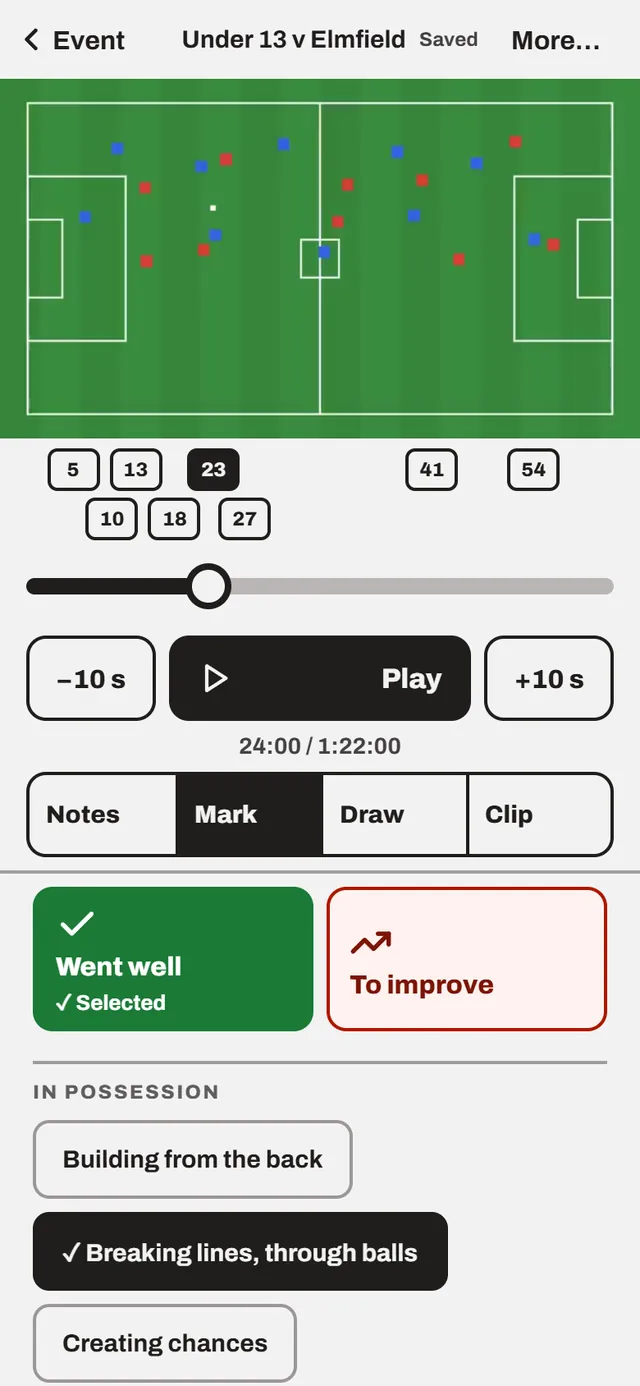
- Pause on a moment and mark it: went well or to improve, which players it is about, and what kind of moment it was.
- Draw on the frame: the run that should have been made, the ball, the zone to protect. Make a clip of it, or a picture, or a short movie of the drawing.
- A tactics board, for showing a pattern with no footage at all.
3. Plan the practice
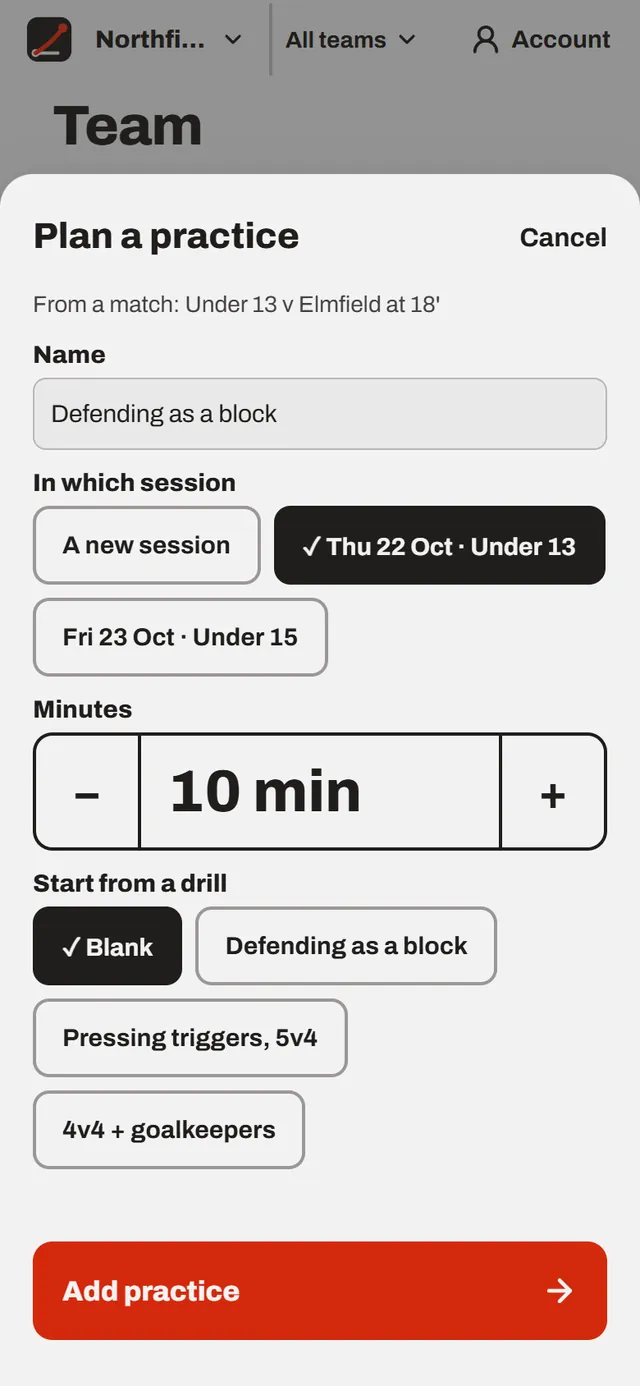
From a moment you marked, plan the practice that fixes it, and put it in the session.
- A session is a list of practices with minutes, pitch size (full, half, quarter, or a mini pitch from 5v5 to 9v9), coaching points and a drawing. A bar shows the minutes planned against the minutes you have.
- A library of drills and templates to start from, and programmes that run across several weeks.
- From a computer or tablet, print the session or save it as a PDF, for the coach who runs it with a clipboard.
- Afterwards, write down what happened: a short reflection on the training, with the plan beside it.
4. Every player, not just the stars
Coaches add their players by email. A player gets a page of their own, and sees only what the coach chooses to show.
- Say who played, who started and who came on, and for how long: the coach’s own record, never shown to players.
- A review of each player, built on the FA’s four corners (technical and tactical, physical, psychological, social): what is going well, one thing to try next, and targets with dates. It cites the notes it was made from.
- Reminders for the reviews that are due, and a card the coach can print or save as a PDF.
- If the club switches it on, an optional AI summary of the notes about a player, as a draft the coach reads and changes. How that works.
5. The pattern across the team
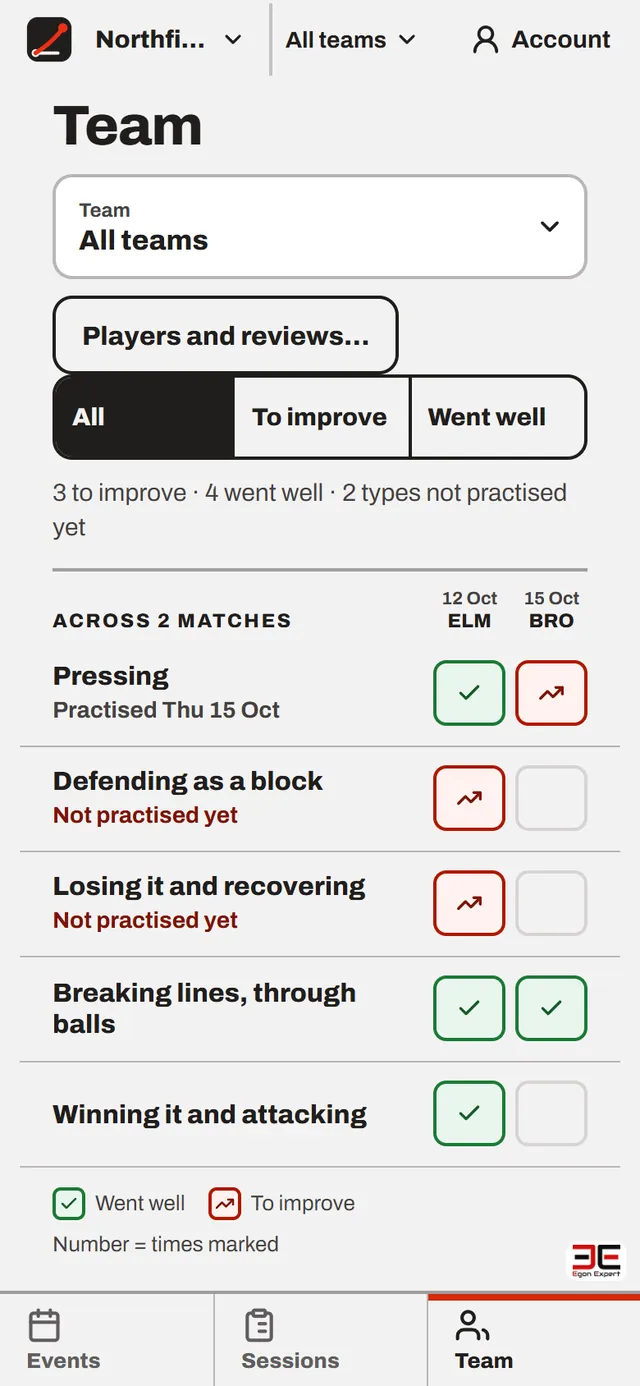
After a few matches, the Team screen shows what you marked, kind of moment by kind of moment.
- A row for each kind of moment and a cell for each of the last four matches: what went well, what is to improve, and how often.
- Under each row, what has not been practised yet, and when it was last practised or is planned.
- Open a row to see its moments, go straight to the video, or plan a practice from one.
Everywhere you coach
One record, whichever device you pick up.
- Install it on a phone like any app, with no app store. It opens with no signal.
- Use a tablet or a computer for the heavy work: reviewing frame by frame, drawing and animating, cutting clips, printing sessions.
- A club has a head coach, coaches and players. A coach sees the events of the teams they look after; the head coach sees all of them.
- Sign in with Google, or have a sign-in link emailed to you.
What it deliberately leaves out
- No player statistics, rankings or leaderboards. Children are not a league table.
- No parent accounts. A review leaves the app as a PDF the coach sends, if they choose to.
- No automatic judging of footage. You watch the match; it keeps your notes.
The club in every picture, Northfield Youth FC, is made up.
Ready to stop saying “unlucky”?
It is open by invitation while it is tested with a first group of clubs. Already invited? Sign in.